Cine Meter uses toolbar buttons to change what the displays show, and taps on the displays to change how it's shown. Cine Meter also has a Settings and Info page for less frequently needed tweaks, as well as built-in help.
Buttons: Use the toolbar buttons to change the displays:

 turns spot metering on and off. The
“spot” is shown as a framing target onscreen; you can drag it to cover your point of
interest. Spot metering affects camera exposure, waveform monitor levels, and light meter
readings only; it does not change the area of the picture that is displayed onscreen or
measured in the waveform monitor. Spot metering only affects exposure, not white balance.
When spot metering is off, the button is dim, and the status line at the bottom of the
meter window shows “MATRIX”. When spot metering is on, the button is bright, and the
status line shows “SPOT”.
turns spot metering on and off. The
“spot” is shown as a framing target onscreen; you can drag it to cover your point of
interest. Spot metering affects camera exposure, waveform monitor levels, and light meter
readings only; it does not change the area of the picture that is displayed onscreen or
measured in the waveform monitor. Spot metering only affects exposure, not white balance.
When spot metering is off, the button is dim, and the status line at the bottom of the
meter window shows “MATRIX”. When spot metering is on, the button is bright, and the
status line shows “SPOT”.  (Exposure Lock) locks the auto-exposure
function of your iDevice’s camera. The camera’s exposure level will be frozen and the
light meter’s reading will be fixed. You can change the light meter’s ISO and shutter,
and aperture will change appropriately, but the exposure reading itself is locked. When
exposure is unlocked, the button is dim. When exposure is locked, the button is bright,
and the status line at the bottom of the meter window shows “EXPOSURE LOCKED”.
(Exposure Lock) locks the auto-exposure
function of your iDevice’s camera. The camera’s exposure level will be frozen and the
light meter’s reading will be fixed. You can change the light meter’s ISO and shutter,
and aperture will change appropriately, but the exposure reading itself is locked. When
exposure is unlocked, the button is dim. When exposure is locked, the button is bright,
and the status line at the bottom of the meter window shows “EXPOSURE LOCKED”.  (White Balance Lock) freezes the current
white balance setting. If you use to grab
the color balance while looking at a white or gray card lit by your reference lighting
source, you can then use the RGB waveform monitor to view relative color balances
elsewhere in your scene, or check the purity and separation of your greenscreen or
bluescreen backgrounds. When white balance is unlocked, the button is dim. When white
balance is locked, the button is bright, and the status line at the bottom of the meter
window shows “WHITE BALANCE LOCKED”.
(White Balance Lock) freezes the current
white balance setting. If you use to grab
the color balance while looking at a white or gray card lit by your reference lighting
source, you can then use the RGB waveform monitor to view relative color balances
elsewhere in your scene, or check the purity and separation of your greenscreen or
bluescreen backgrounds. When white balance is unlocked, the button is dim. When white
balance is locked, the button is bright, and the status line at the bottom of the meter
window shows “WHITE BALANCE LOCKED”. - FALSE turns the camera picture into a monochrome view with color-coded brightness levels. You can customize the false-color levels shown. When false color is off, the button is dim. When false color is on, the button is bright.
- FRAME / LINE toggles the waveform monitor between full-frame and single-line modes. FRAME mode measures brightness across the entire picture, while single-line mode measures the brightness across a single horizontal "scanline" running across the center of the picture. When LINE is selected, a guideline on the camera picture shows the line that’s being measured.
 /
/  /
/  sets the waveform monitor to
show a brightness or luma (Y) signal, RGB levels, or both luma and RGB.
sets the waveform monitor to
show a brightness or luma (Y) signal, RGB levels, or both luma and RGB. opens the Settings
and Info page with lesser-used controls.
opens the Settings
and Info page with lesser-used controls.
Tap different parts of the screen to bring up display controls:
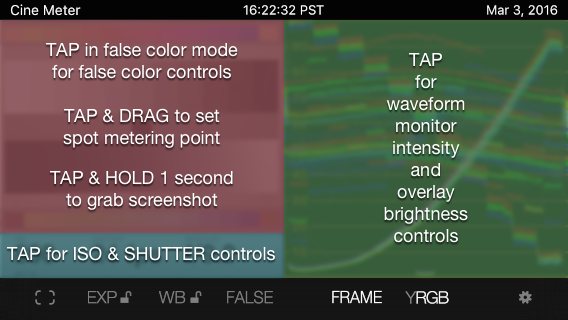
- Tap and Drag the Camera Picture to set the spot metering point. (Tap
and drag only works when in spot metering mode).
- Tap the False-Color Camera Picture to show the sliders for the false-color levels. Tap the picture again to hide the controls, or wait three seconds. (This tap only works in False-color mode.)

You can move the sliders while watching the image; the frame rate will drop while you adjust the levels, but you’ll still be able to see what you're doing.
To disable red or yellow, slide its slider all the way to the right (“above 100%”). To disable blue, purple, or green, slide its slider all the way to the left (“below 0%”).
The color logic is set up for an orderly progression of levels as shown above. If you get creative, you'll discover that purple has priority over blue and blue over green; all three have priority over the highlight colors, but red has priority over yellow.
- TAP and HOLD the Camera Picture for one second to capture a screenshot to your Camera Roll. The background will flash white and you'll hear the camera sound (all the images on this page come from screenshots; note the timestamps in the top line).
- Tap the waveform monitor to show Intensity and Overlay sliders. These control the brightness of the waveform trace and the scale overlay. Tap the waveform monitor again to hide the controls.

- Tap the Light Meter readouts to show ISO Rating and Shutter Speed sliders. Tap the SHUTTER value to set the shutter speed or frame rate; tap ISO to set ISO.
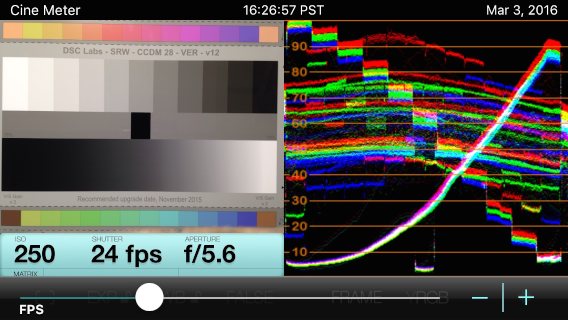
As you adjust ISO and shutter, the aperture will change accordingly. Use the sliders for coarse adjustments; use the -|+ stepper for fine-tuning. When you have the values you want, tap the light meter display again to dismiss the controls, or wait three seconds for them to disappear by themselves.
(This version of Cine Meter uses a shutter-priority meter: you set ISO and shutter, and aperture changes accordingly. This is usually what cinematographers want.)
Settings and Info lets you adjust settings and see program info and help:
- Meter Compensation lets you adjust Cine Meter's exposure to match an external meter. You can tweak compensation by +/- 5 stops, in tenth-stop increments.
- Cine Mode Speeds shows you shutter speeds as frames per second (fps) instead of shutter time in seconds. Fps mode assumes a 180º shutter and doesn’t necessarily show you flicker-free exposures available in seconds mode, because flicker-free exposures often require opening or closing the shutter angle.
- Aperture Display lets you choose how apertures are shown: by halves or thirds; showing decimal values (good for cameras with electronic aperture readouts) or fractions (good for cine-style lenses); or as a raw decimal readout (not very useful in daily life, but it can be handy during calibration).
- Spotmeter Frame gives you several choices for the onscreen frame showing the spot metering area.
- Levels Reminder displays “Picture and waveform levels often do not match meter readings” when Cine Meter starts up. It's a cautionary reminder so you won’t relate waveform monitor and false-color levels directly to the light meter readings, due to limitations described here. You can turn off the reminder, but then it’s up to you to remember these limitations and not be fooled by them.
- Use Computed Brightness (version 1.6+) tells Cine Meter to compute brightness from camera settings and picture content instead of using brightness metadata. Use this only if Cine Meter gives you inaccurate readings with it off. Starting with version 1.7, computed brightness is automatically used when needed on iOS versions up to 9.1; see more details here.
- Low Power Mode reduces the image update rate to 15 fps and the waveform monitor to 5 fps. Your battery may last up to 50% longer in Low Power Mode, though Cine Meter responds more slowly to changing light. On iOS 9+, Low Power Mode is automatically engaged when your iDevice is in Low Power Mode regardless of the switch setting. (Switching the waveform monitor to LINE mode also reduces power consumption. Low Power and LINE modes combined may give you as much as 80% more run time.)
- Show Debug Window shows technical data overlaid on the picture. This can be useful in tracking down problems; if you contact me for tech support I may ask you what shows up in this window. Normally leave this turned off.
- Help shows a limited subset of this help.
- Info shows licensing / copyright info and the very simple privacy policy.
- Send Feedback opens an email composer window, with the to: address and the subject: already filled in. Send me your comments, suggestions, feature requests, questions, and/or bug reports, and I’ll respond as soon as I can. Please use Send Feedback; it’s the quickest and best way to report problems or ask questions. Make sure the Subject line contains “Cine Meter”, or your message might get flagged as spam if you're sending from a spam-prone ISP.
- Upgrade to Cine Meter II tries to open the Cine Meter Upgrade Bundle page in the App Store, but that bundle hasn't been available since Cine Meter’s price fell below US$1 (this is Apple's limitation: they only look at current prices, not what you might have spent previously, sorry).
ChromaDuMonde® charts seen in Cine Meter screenshots used with kind permission of DSC Labs. DSC Labs is not responsible for any images viewed with Cine Meter, or how they appear in Cine Meter's pictures.
© 2013–2018 Adam J. Wilt. Last updated 2024-12-14